> ## Documentation Index
> Fetch the complete documentation index at: https://dub-partner-network.mintlify.site/llms.txt
> Use this file to discover all available pages before exploring further.
# Custom QR codes
> Learn how custom QR codes work on Dub.
This feature is only available on [Pro plans and
above](https://dub.co/pricing).
As a freemium product, we rely on word of mouth to spread the word about Dub. Therefore, on Dub's free plan, you can only use the default QR code logo for your short links.
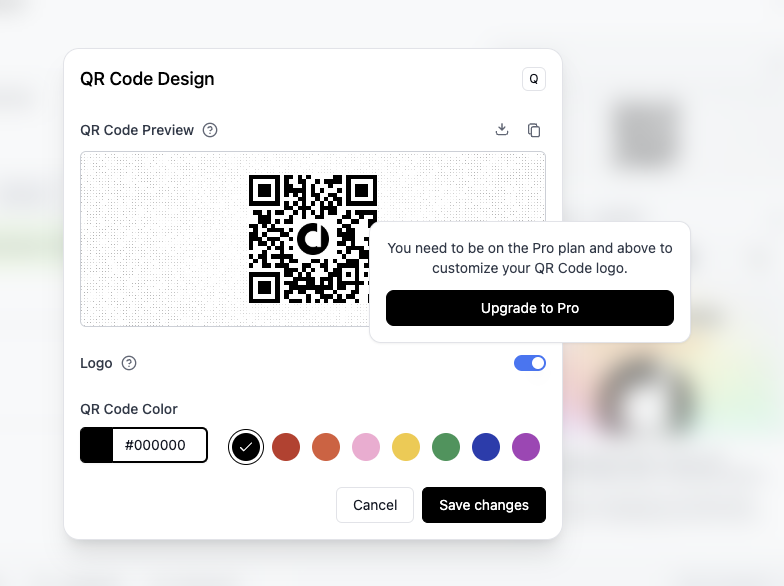 If you'd like to remove the Dub logo/upload your own, please consider [upgrading to a Pro plan](https://dub.co/pricing#how-to-upgrade-to-pro) to support us. Thank you!
## How to set a custom QR code logo?
Once you're on a Pro plan, you can set a custom QR code for your short links.
There are two ways to set a custom QR code logo:
* [For your entire workspace](#set-a-custom-qr-code-logo-for-your-entire-workspace) – applies to all short links under your workspace
* [For a specific domain](#set-a-custom-qr-code-logo-for-a-specific-domain) – applies to all short links under this domain
If a custom QR code logo is set for both your workspace and a domain, the
custom QR code logo for the domain will take precedence.
### Option 1: Set a custom QR code logo for your entire workspace
To set a custom QR code logo for your entire workspace, you'll need to set your workspace's logo first by following the steps below:
1. Go to your [workspace settings page](https://app.dub.co/settings) by clicking on the **Settings** tab in the sidebar.
2. Scroll down to the **Workspace Logo** section and upload your company's logo. We recommend using a square image for the best results.
If you'd like to remove the Dub logo/upload your own, please consider [upgrading to a Pro plan](https://dub.co/pricing#how-to-upgrade-to-pro) to support us. Thank you!
## How to set a custom QR code logo?
Once you're on a Pro plan, you can set a custom QR code for your short links.
There are two ways to set a custom QR code logo:
* [For your entire workspace](#set-a-custom-qr-code-logo-for-your-entire-workspace) – applies to all short links under your workspace
* [For a specific domain](#set-a-custom-qr-code-logo-for-a-specific-domain) – applies to all short links under this domain
If a custom QR code logo is set for both your workspace and a domain, the
custom QR code logo for the domain will take precedence.
### Option 1: Set a custom QR code logo for your entire workspace
To set a custom QR code logo for your entire workspace, you'll need to set your workspace's logo first by following the steps below:
1. Go to your [workspace settings page](https://app.dub.co/settings) by clicking on the **Settings** tab in the sidebar.
2. Scroll down to the **Workspace Logo** section and upload your company's logo. We recommend using a square image for the best results.
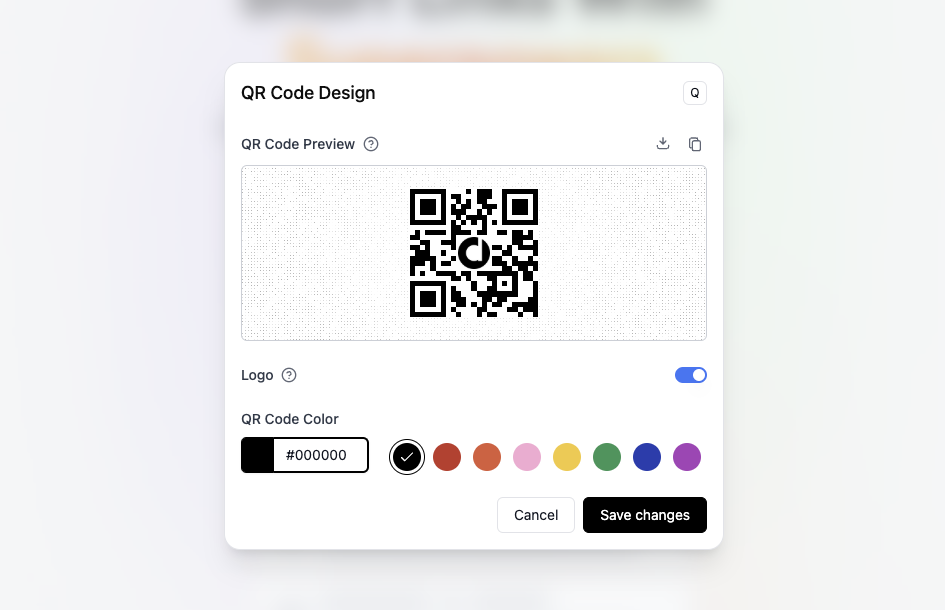
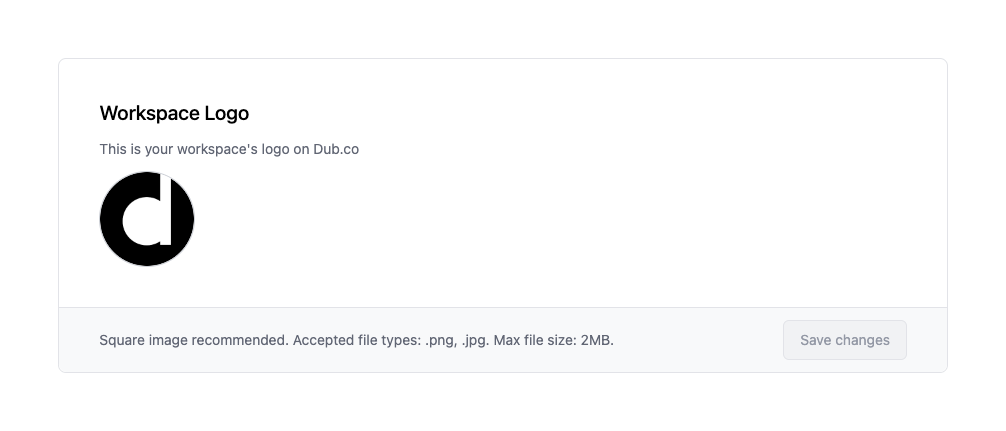 Once you've set your workspace's logo, your QR code will automatically update to use your workspace's logo.
 ### Option 2: Set a custom QR code logo for a specific domain
If you manage multiple brands/products on Dub, you can set custom QR code logos for each of them for better brand recognition.
### Option 2: Set a custom QR code logo for a specific domain
If you manage multiple brands/products on Dub, you can set custom QR code logos for each of them for better brand recognition.
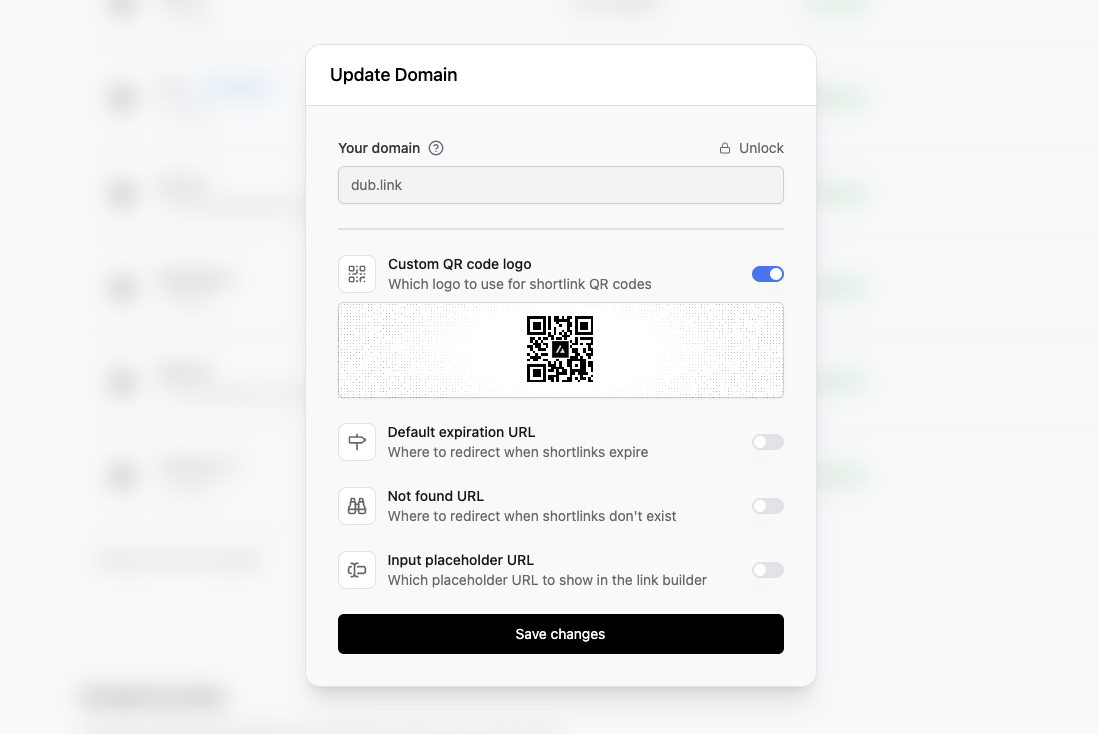
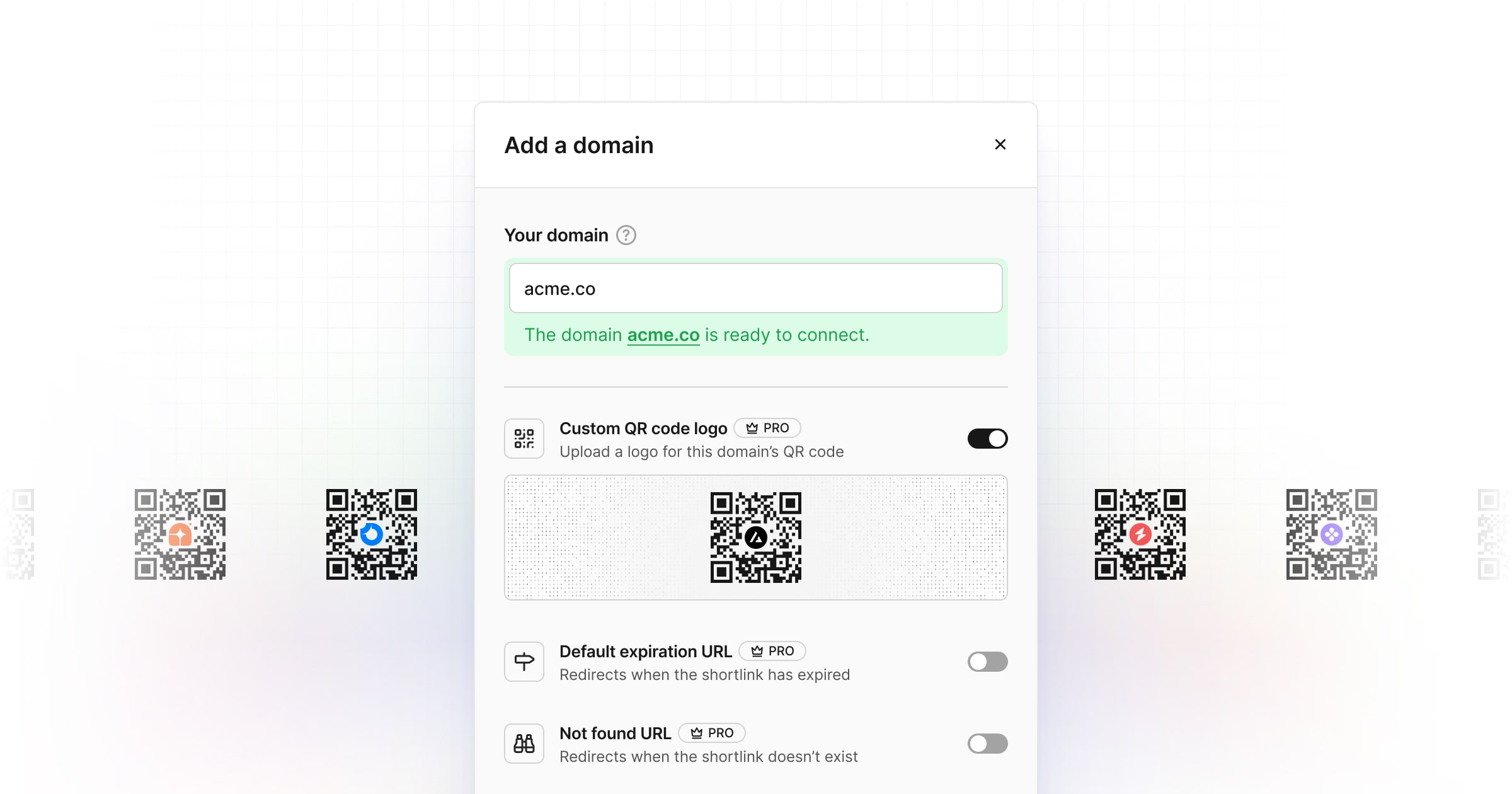 To set a custom QR code logo for a specific domain, you'll need to follow the steps below:
1. Go to your [workspace Domains settings tab](https://app.dub.co/domains).
2. Click on the `⋮` button next to the domain you want to set a custom not found URL for.
3. Select **Edit Domain** to edit the domain settings.
4. Toggle the **Custom QR code logo** switch to enable it.
5. Upload your custom QR code logo. We recommend using a square image for the best results.
6. Click on the **Save changes** button to save the changes.
To set a custom QR code logo for a specific domain, you'll need to follow the steps below:
1. Go to your [workspace Domains settings tab](https://app.dub.co/domains).
2. Click on the `⋮` button next to the domain you want to set a custom not found URL for.
3. Select **Edit Domain** to edit the domain settings.
4. Toggle the **Custom QR code logo** switch to enable it.
5. Upload your custom QR code logo. We recommend using a square image for the best results.
6. Click on the **Save changes** button to save the changes.
 ## Programmatically creating QR codes
Once you've set a custom QR code logo, you can use our [QR Code API](/docs/api-reference/endpoint/retrieve-a-qr-code) to create QR codes programmatically as well.
On our Pro plans and above, you can choose to include your logo in the generated QR codes or hide it if you want.
* If your workspace has a logo set, your QR codes will automatically have that logo as well, but you can choose to hide it using the `hideLogo` prop ([example](https://api.dub.co/qr?url=https://d.to/try?qr=1))
* If your workspace has no logo set, your QR codes will have no logo.
* Alternatively, you can also pass a custom logo in your QR codes using the `logo` prop ([example](https://api.dub.co/qr?url=https://d.to/try?qr=1\&logo=https://assets.dub.co/wordmark-square.png)).
## Programmatically creating QR codes
Once you've set a custom QR code logo, you can use our [QR Code API](/docs/api-reference/endpoint/retrieve-a-qr-code) to create QR codes programmatically as well.
On our Pro plans and above, you can choose to include your logo in the generated QR codes or hide it if you want.
* If your workspace has a logo set, your QR codes will automatically have that logo as well, but you can choose to hide it using the `hideLogo` prop ([example](https://api.dub.co/qr?url=https://d.to/try?qr=1))
* If your workspace has no logo set, your QR codes will have no logo.
* Alternatively, you can also pass a custom logo in your QR codes using the `logo` prop ([example](https://api.dub.co/qr?url=https://d.to/try?qr=1\&logo=https://assets.dub.co/wordmark-square.png)).