> ## Documentation Index
> Fetch the complete documentation index at: https://dub-partner-network.mintlify.site/llms.txt
> Use this file to discover all available pages before exploring further.
# Managing your program partners
> Understand how all your partners are performing and contributing to the success of your partner program.
This feature is only available on [Business plans and
above](https://dub.co/pricing/partners).
## Where to find your program partners
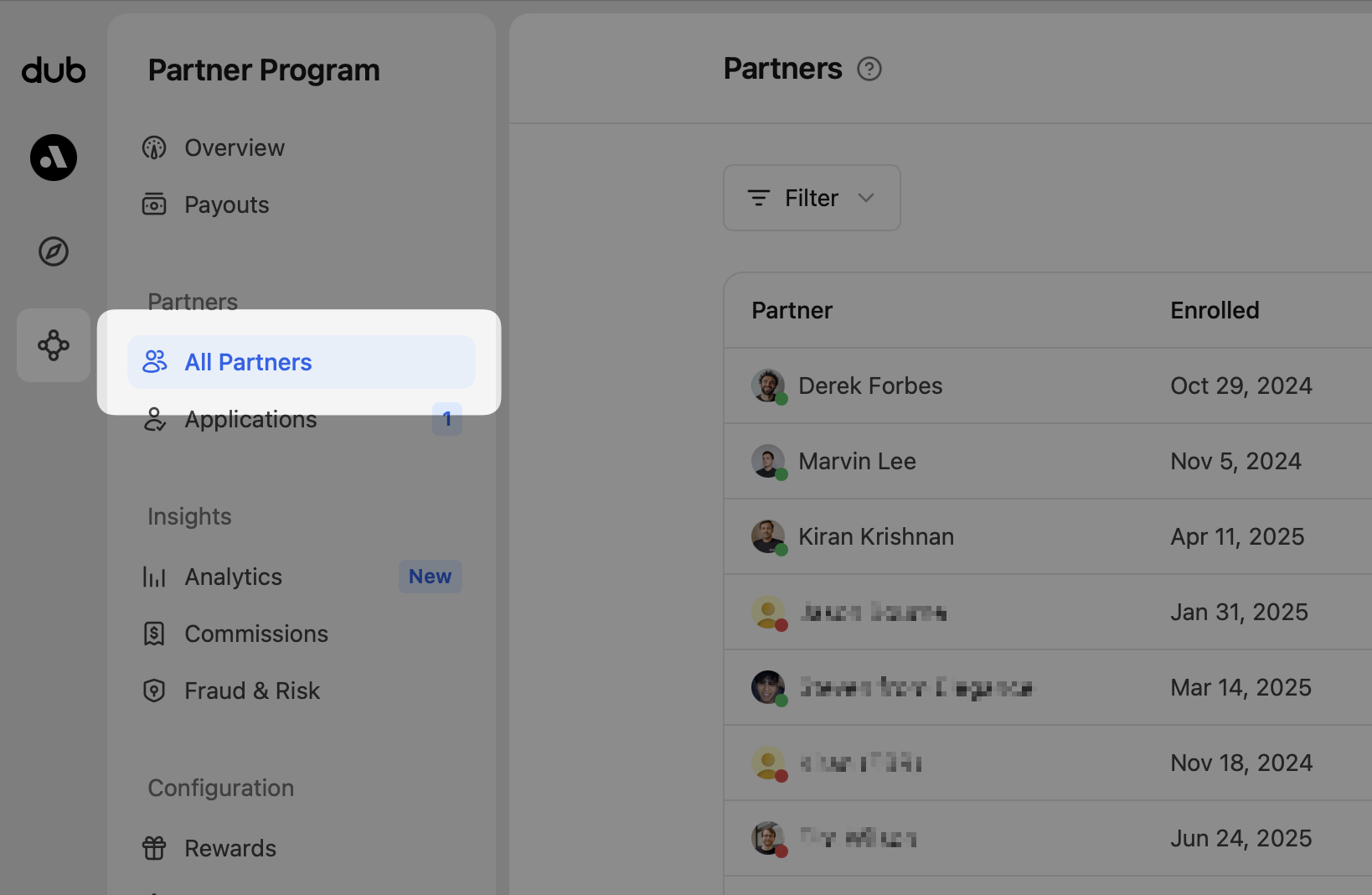
In the **Partner Program** menu, click **All Partners** to see everyone in your program.
 ## Inviting partners
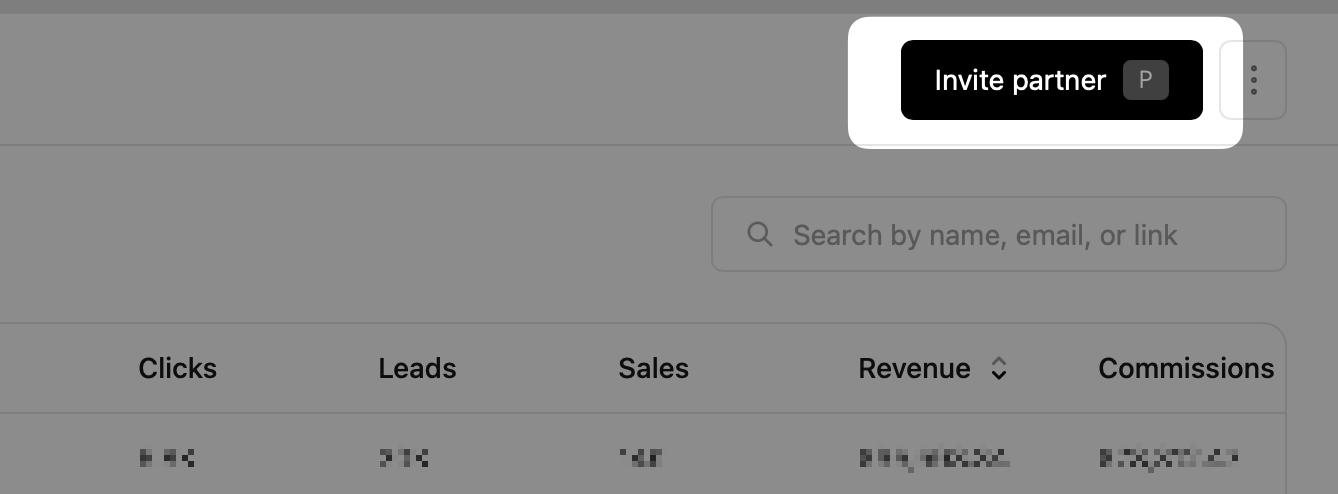
On the **Partners** page, click **Invite partner** to open the invite panel.
## Inviting partners
On the **Partners** page, click **Invite partner** to open the invite panel.
 [Learn more about inviting partners here.](/help/article/inviting-partners)
## Importing partners
Click the `⋮` menu to import partners from supported platforms into your Dub program.
[Learn more about inviting partners here.](/help/article/inviting-partners)
## Importing partners
Click the `⋮` menu to import partners from supported platforms into your Dub program.
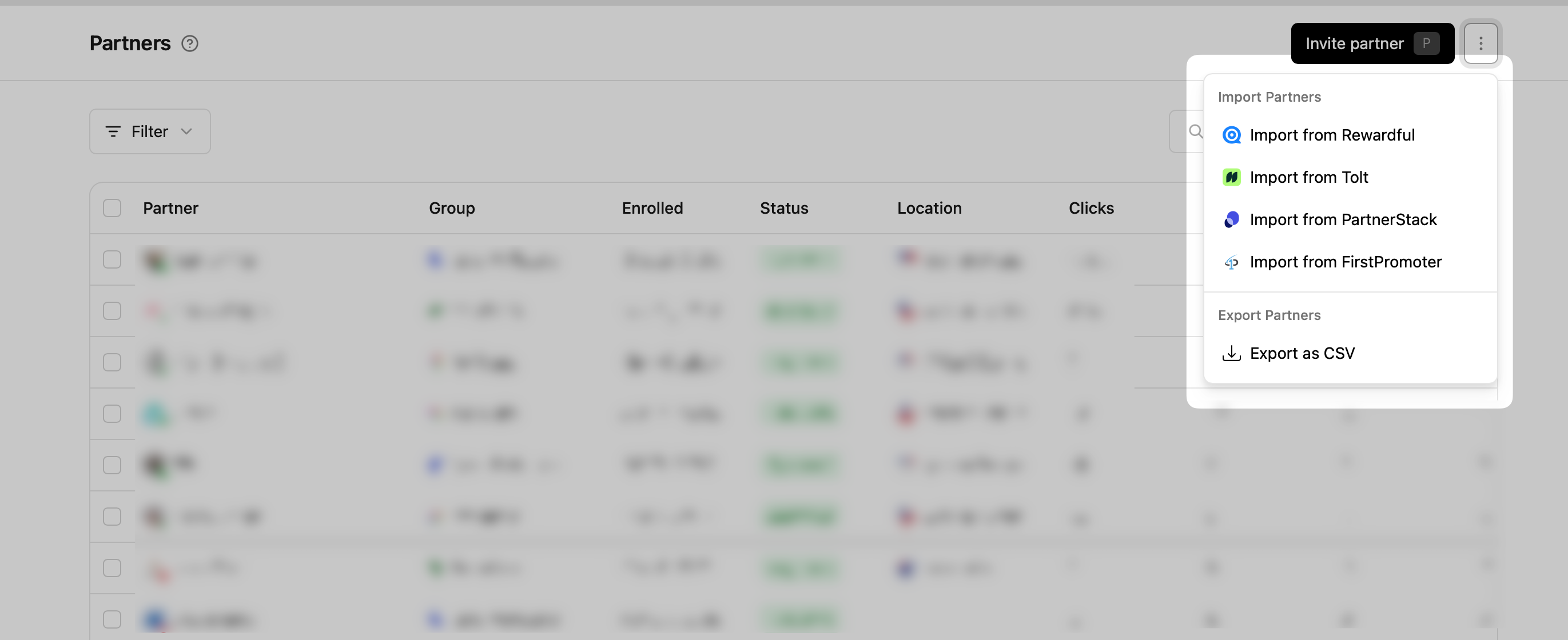 Dub currently supports importing from:
* [Rewardful](/help/article/migrating-from-rewardful)
* [Tolt](/help/article/migrating-from-tolt)
* [PartnerStack](/help/article/migrating-from-partnerstack)
* [FirstPromoter](/help/article/migrating-from-firstpromoter)
If you’d like to import from other platforms, [let us know](https://dub.co/contact/support).
## Exporting partners
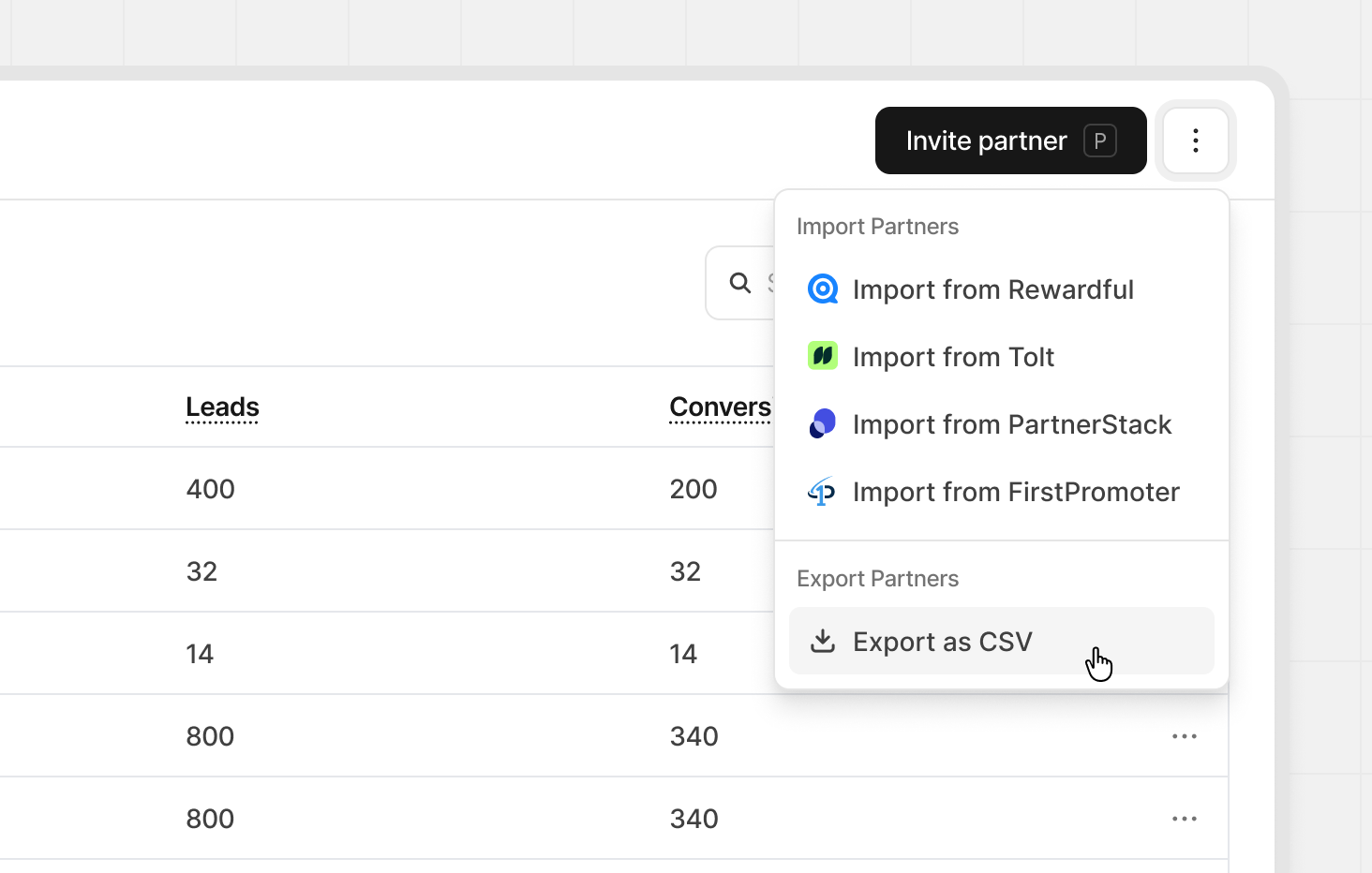
Click the `⋮` menu and choose **Export as CSV** to download your partner data for use anywhere.
Dub currently supports importing from:
* [Rewardful](/help/article/migrating-from-rewardful)
* [Tolt](/help/article/migrating-from-tolt)
* [PartnerStack](/help/article/migrating-from-partnerstack)
* [FirstPromoter](/help/article/migrating-from-firstpromoter)
If you’d like to import from other platforms, [let us know](https://dub.co/contact/support).
## Exporting partners
Click the `⋮` menu and choose **Export as CSV** to download your partner data for use anywhere.
 ## Partner table
The partner table gives you a complete view of everyone in your program. By default, partners are sorted by **net revenue**, starting with your highest performers. This makes it easy to see who is driving the most value at a glance.
## Partner table
The partner table gives you a complete view of everyone in your program. By default, partners are sorted by **net revenue**, starting with your highest performers. This makes it easy to see who is driving the most value at a glance.
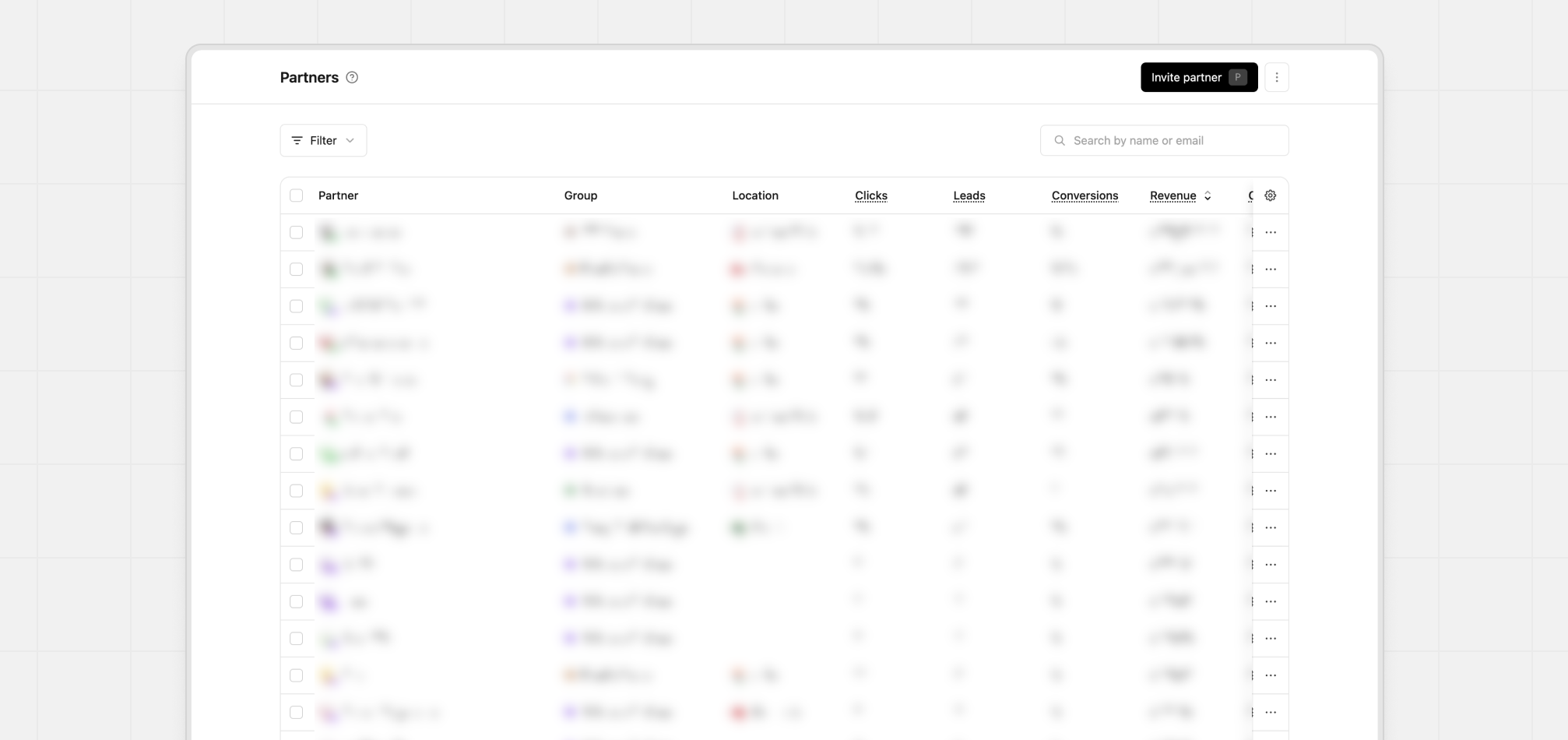 You can sort the table by any column header. For example, select **Conversions** to sort partners by the number of conversions instead of revenue.
### Default columns
When you first open the table, you will see a focused set of columns designed to give you a quick read on partner performance.
| Column | Description |
| ----------- | --------------------------------------------------------- |
| Group | The group this partner is in |
| Location | The partner's declared location |
| Clicks | Total number of clicks on the partner's links |
| Leads | Total number of leads generated by the partner's links |
| Conversions | Total number of leads that converted to paying customers |
| Revenue | Total revenue generated by the partner's links |
| Commissions | Total commissions paid to the partner for their referrals |
| Net Revenue | Net revenue after commissions |
You can sort the table by any column header. For example, select **Conversions** to sort partners by the number of conversions instead of revenue.
### Default columns
When you first open the table, you will see a focused set of columns designed to give you a quick read on partner performance.
| Column | Description |
| ----------- | --------------------------------------------------------- |
| Group | The group this partner is in |
| Location | The partner's declared location |
| Clicks | Total number of clicks on the partner's links |
| Leads | Total number of leads generated by the partner's links |
| Conversions | Total number of leads that converted to paying customers |
| Revenue | Total revenue generated by the partner's links |
| Commissions | Total commissions paid to the partner for their referrals |
| Net Revenue | Net revenue after commissions |
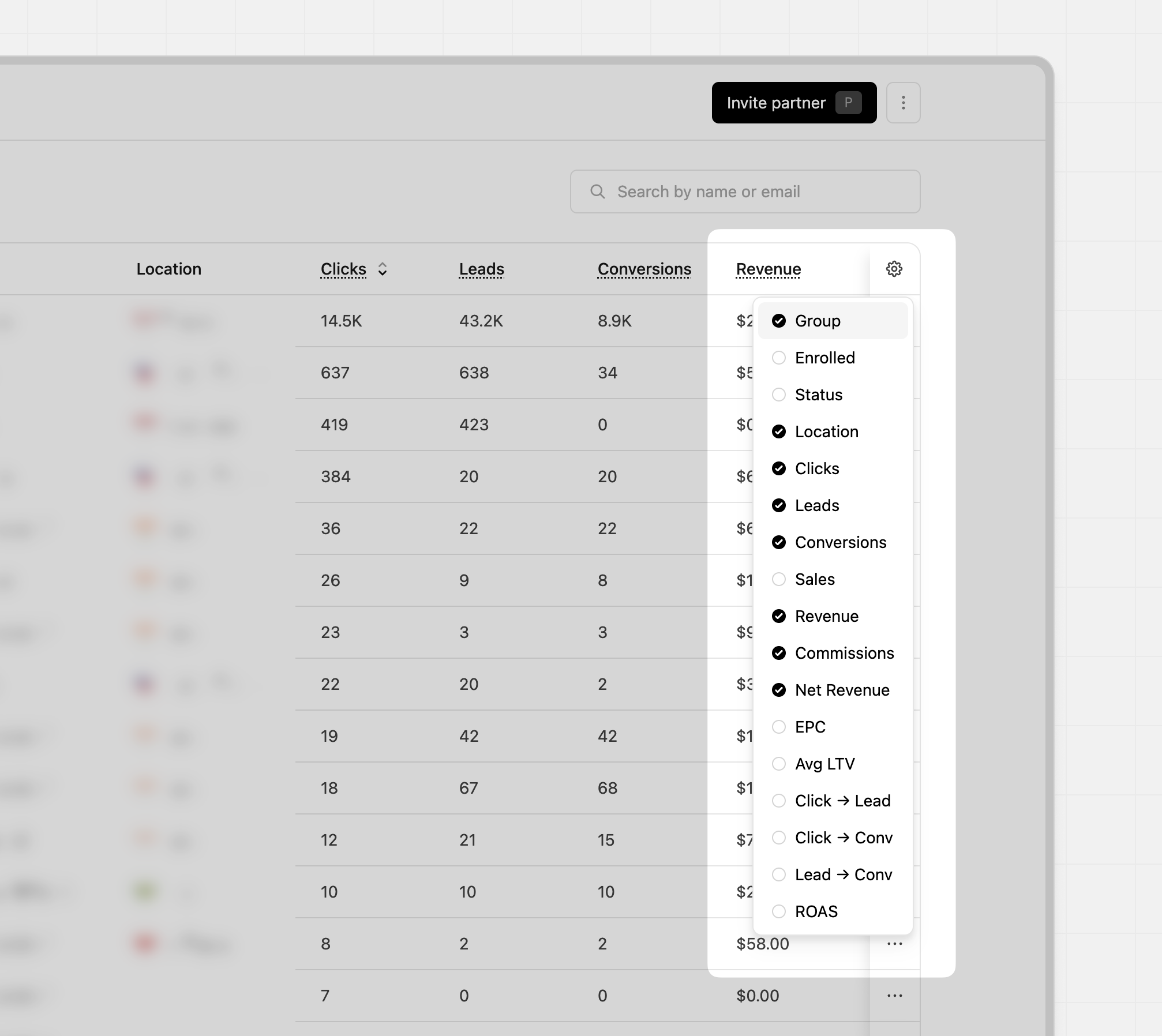 These can be changed anytime by clicking the `Gear icon` in the top right of the table, allowing you to enable or disable additional columns.
### Additional columns
If you need a deeper view, you can turn on extra performance and attribution metrics. These optional columns help you understand partner quality, funnel efficiency, and long term value more clearly.
| Column | Description | Equation |
| ------------- | ----------------------------------------------------- | --------------------------------- |
| EPC | Earnings Per Click | Total Revenue ÷ Total Clicks |
| Avg LTV | Average lifetime value for each paying customer | Total Revenue ÷ Total Conversions |
| Click -> Lead | Percentage of clicks that become leads | Total Leads ÷ Total Clicks |
| Click -> Conv | Percentage of clicks that convert to paying customers | Total Conversions ÷ Total Clicks |
| Lead -> Conv | Percentage of leads that convert to paying customers | Total Conversions ÷ Total Leads |
| ROAS | Return On Ad Spend | Total Revenue ÷ Total Commissions |
### Filter and search
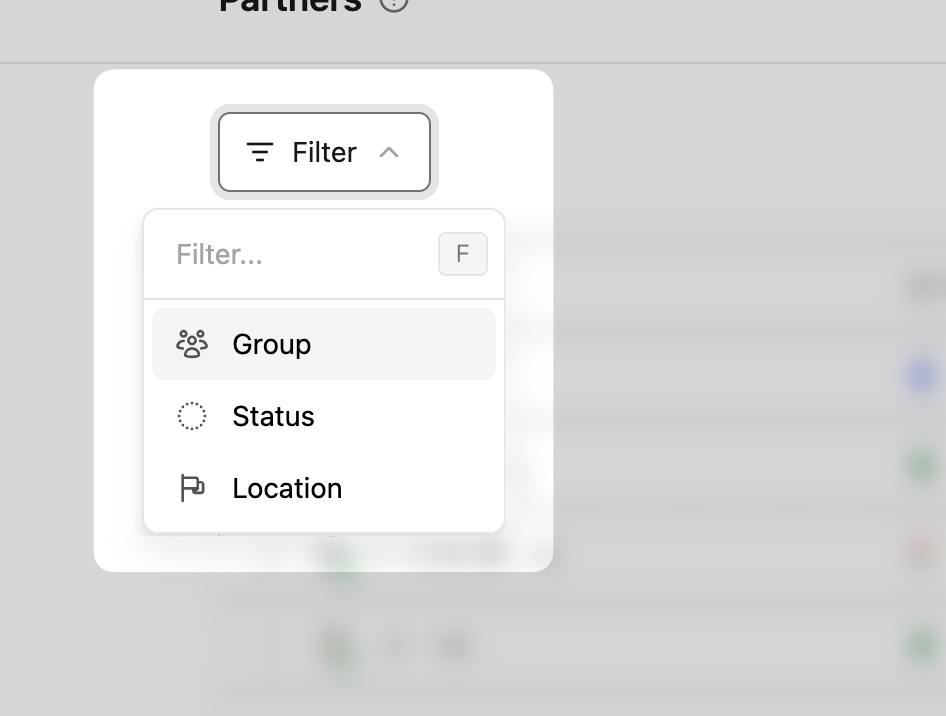
Use filters to sort partners by group, status, or location. Filters help you spot top-performing partners.
You can also use the search field to search by name, email, or link. This is helpful when looking for a specific partner.
These can be changed anytime by clicking the `Gear icon` in the top right of the table, allowing you to enable or disable additional columns.
### Additional columns
If you need a deeper view, you can turn on extra performance and attribution metrics. These optional columns help you understand partner quality, funnel efficiency, and long term value more clearly.
| Column | Description | Equation |
| ------------- | ----------------------------------------------------- | --------------------------------- |
| EPC | Earnings Per Click | Total Revenue ÷ Total Clicks |
| Avg LTV | Average lifetime value for each paying customer | Total Revenue ÷ Total Conversions |
| Click -> Lead | Percentage of clicks that become leads | Total Leads ÷ Total Clicks |
| Click -> Conv | Percentage of clicks that convert to paying customers | Total Conversions ÷ Total Clicks |
| Lead -> Conv | Percentage of leads that convert to paying customers | Total Conversions ÷ Total Leads |
| ROAS | Return On Ad Spend | Total Revenue ÷ Total Commissions |
### Filter and search
Use filters to sort partners by group, status, or location. Filters help you spot top-performing partners.
You can also use the search field to search by name, email, or link. This is helpful when looking for a specific partner.
 **Status filter**
Filter by status to see who’s active and who isn’t.
| Status | Description |
| ----------- | ---------------------------------------------------------------------------------------------------------------------------------------------------------------------- |
| Approved | Partner has joined and can earn rewards |
| Invited | Partners that have been invited to your program but haven't accepted the invite yet |
| Declined | Partners that have declined your invitation to join |
| Archived | Partner has been removed from the program |
| Banned | Partners that you have banned from your program |
| Deactivated | Partners that you've deactivated your partnership with. This could be used for ending a partnership for non abuse-related reasons (e.g. commercial/financial reasons). |
### More dropdown
For each partner, click the ⋯ menu to see more controls.
**Status filter**
Filter by status to see who’s active and who isn’t.
| Status | Description |
| ----------- | ---------------------------------------------------------------------------------------------------------------------------------------------------------------------- |
| Approved | Partner has joined and can earn rewards |
| Invited | Partners that have been invited to your program but haven't accepted the invite yet |
| Declined | Partners that have declined your invitation to join |
| Archived | Partner has been removed from the program |
| Banned | Partners that you have banned from your program |
| Deactivated | Partners that you've deactivated your partnership with. This could be used for ending a partnership for non abuse-related reasons (e.g. commercial/financial reasons). |
### More dropdown
For each partner, click the ⋯ menu to see more controls.
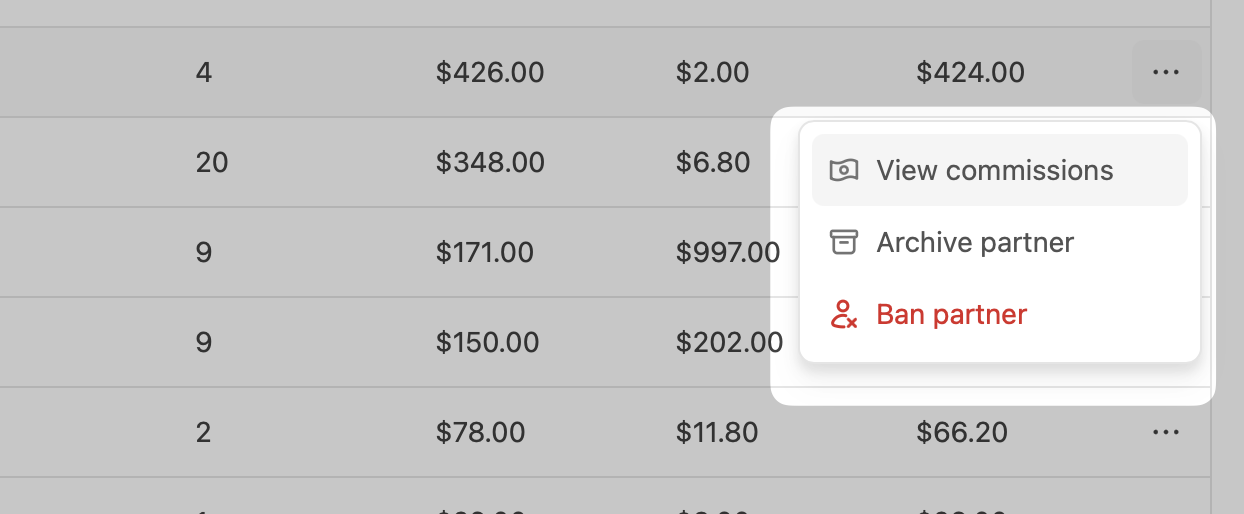 These additional controls include:
* **Approved partners**: View commissions, Archive partner, and Ban Partner
Archive partner, and Ban Partner
* **Invited partners**: Resend invite and
Delete invite
* **Archived partners**: View commissions, Unarchive partner, and
Ban partner.
* **Banned partners**: View commissions, Archive partner, and
Unban partner.
## Partner details
Click on a partner’s row to see their details, like their profile, performance, short links, payouts, and commissions.
These additional controls include:
* **Approved partners**: View commissions, Archive partner, and Ban Partner
Archive partner, and Ban Partner
* **Invited partners**: Resend invite and
Delete invite
* **Archived partners**: View commissions, Unarchive partner, and
Ban partner.
* **Banned partners**: View commissions, Archive partner, and
Unban partner.
## Partner details
Click on a partner’s row to see their details, like their profile, performance, short links, payouts, and commissions.
 ### Links
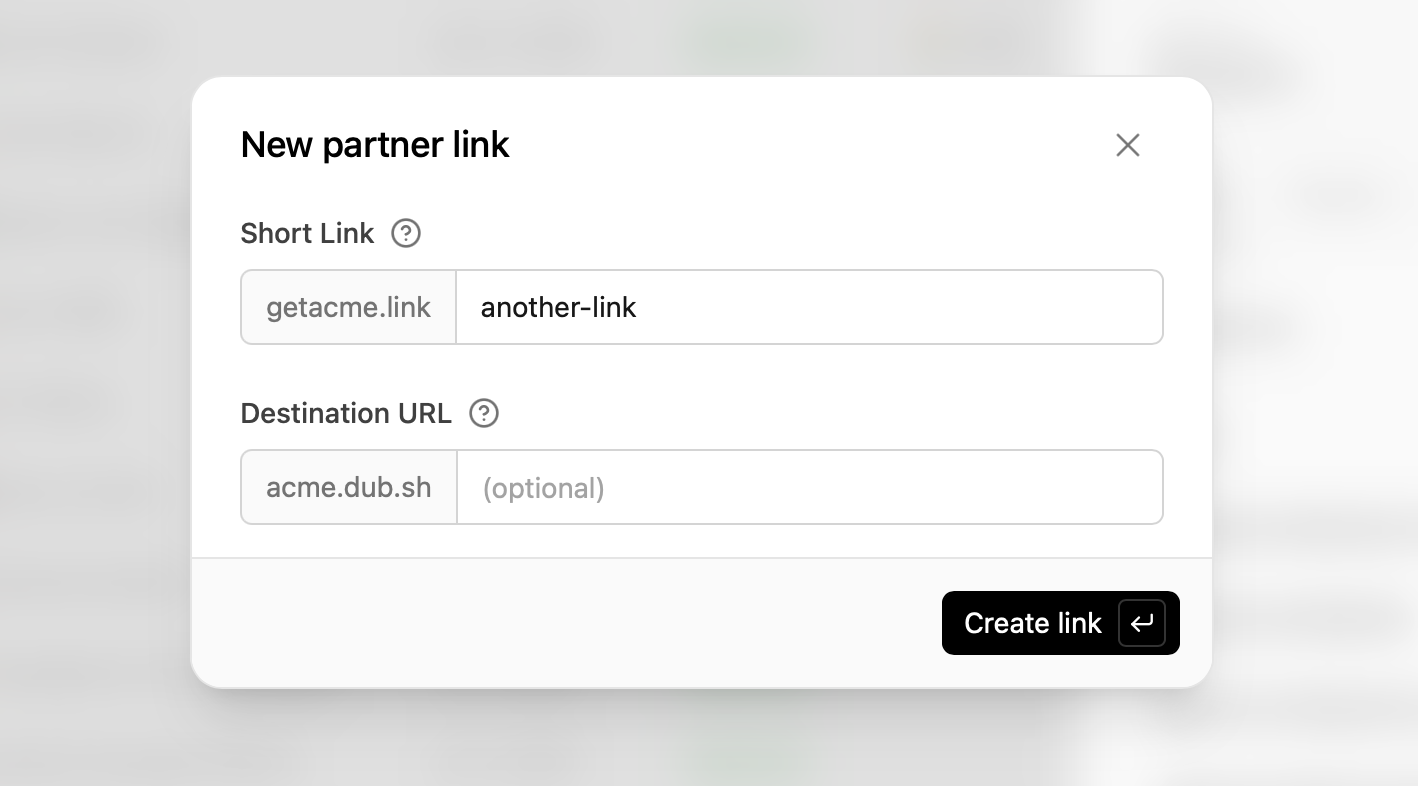
To see all referral links for this partner, click **Links**. You'll also see partner discount codes if they have been added. Learn more about partner [discount codes](/help/article/dual-sided-incentives#option-2-using-stripe-promo-codes-no-link-required).
### Links
To see all referral links for this partner, click **Links**. You'll also see partner discount codes if they have been added. Learn more about partner [discount codes](/help/article/dual-sided-incentives#option-2-using-stripe-promo-codes-no-link-required).
 If you need to create a link for your partner, click **Create link**.
 ### Payouts
Click **Payouts** to see all payouts for a partner. Click any payout row to view its details.
### Payouts
Click **Payouts** to see all payouts for a partner. Click any payout row to view its details.
 ### Profile
To view the partner's profile details, click the **Profile** button next to their name in the right column.
### Profile
To view the partner's profile details, click the **Profile** button next to their name in the right column.
 This will open a panel where you can view details like their country, bio, and connected websites or social accounts. You'll also be able to view the partner's original application response when they first applied.
 ### Comments
Click **Comments** to view and add comments for this partner, which only your workspace can view. You can also edit and delete your own comments in case a mistake was made.
### Comments
Click **Comments** to view and add comments for this partner, which only your workspace can view. You can also edit and delete your own comments in case a mistake was made.
 ### Commissions
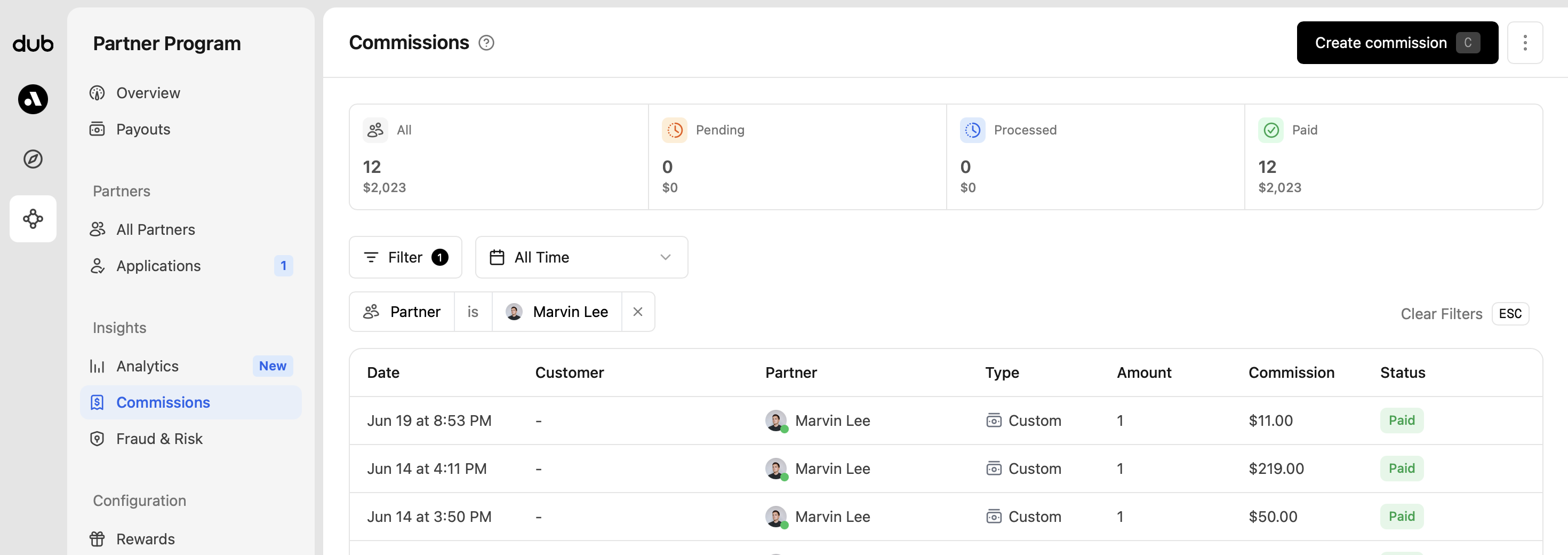
Click **Commissions** to open a page showing commissions filtered for this partner. [Learn more about partner commissions here](/help/article/partner-commissions).
### Commissions
Click **Commissions** to open a page showing commissions filtered for this partner. [Learn more about partner commissions here](/help/article/partner-commissions).
 ### Manual commission
Occasionally, you might need to create a one-off or recurring commission to account for a missed commission or other reasons. On Dub, you can easily create those commissions via the dashboard, and they will be included in the next payout for that partner.
Click **Create commission** to get started. [Learn more about manual commissions here](/help/article/partner-commissions#creating-manual-commissions).
### Manual commission
Occasionally, you might need to create a one-off or recurring commission to account for a missed commission or other reasons. On Dub, you can easily create those commissions via the dashboard, and they will be included in the next payout for that partner.
Click **Create commission** to get started. [Learn more about manual commissions here](/help/article/partner-commissions#creating-manual-commissions).
 ## Advanced settings
Use caution when changing any of the advanced partner settings.
To access your partner's advanced settings, from their profile page, click the `⋮` dropdown and select **Advanced settings**.
## Advanced settings
Use caution when changing any of the advanced partner settings.
To access your partner's advanced settings, from their profile page, click the `⋮` dropdown and select **Advanced settings**.
 ### Tenant ID
If you need to update the partner's tenant ID, changing the ID here will update the [tenantId for all their links](/docs/concepts/links/organization#tenant-id) as well. This could potentially impact any custom integration you have set up, so only change if you’re certain the information is correct and necessary.
### Customer data sharing
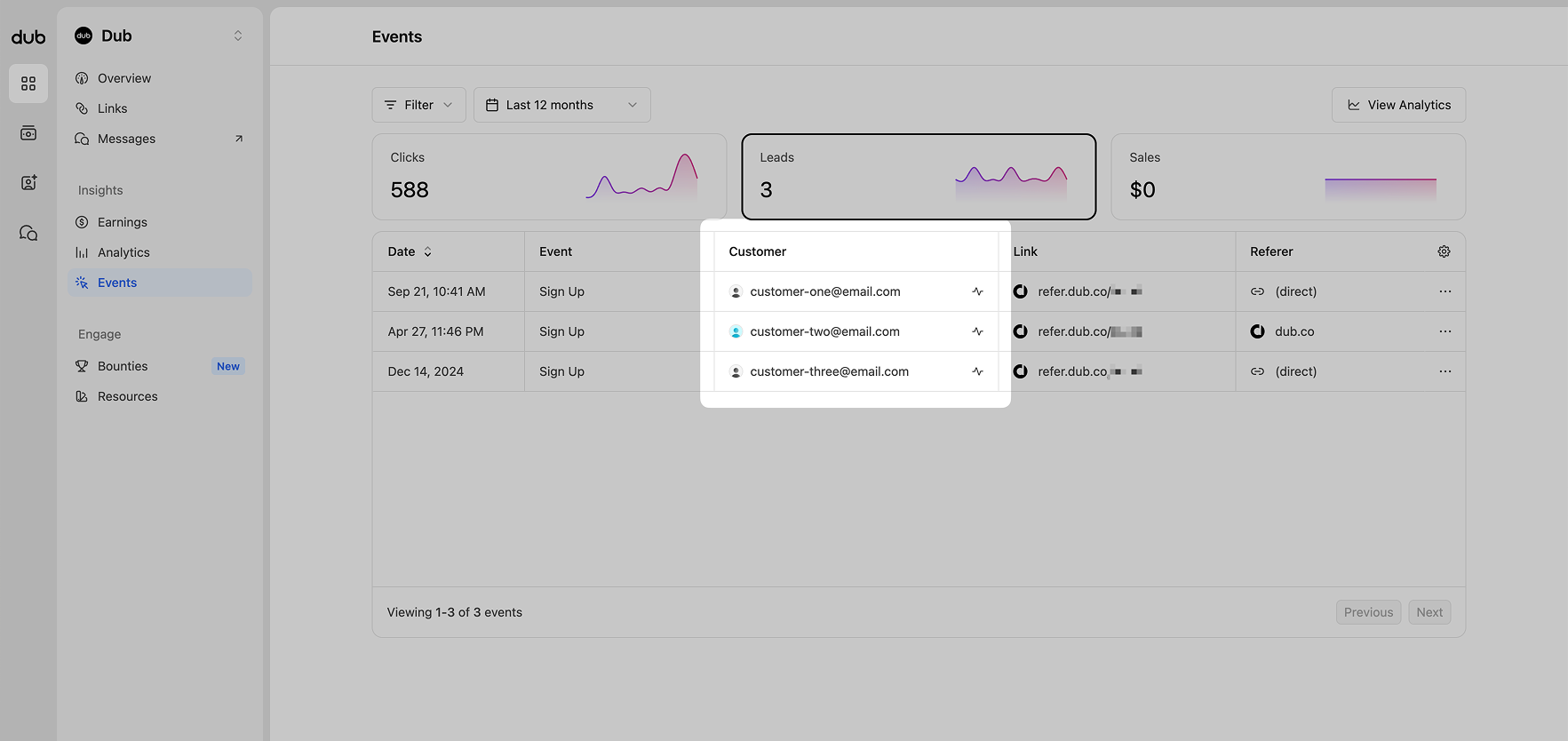
Enabling this setting allows this partner to see customer data on any leads or sales the partner has made.
Instead of the hidden email addresses, they will see the full customer email address and their name. They'll also be able to click through the customer to view the sales history.
### Tenant ID
If you need to update the partner's tenant ID, changing the ID here will update the [tenantId for all their links](/docs/concepts/links/organization#tenant-id) as well. This could potentially impact any custom integration you have set up, so only change if you’re certain the information is correct and necessary.
### Customer data sharing
Enabling this setting allows this partner to see customer data on any leads or sales the partner has made.
Instead of the hidden email addresses, they will see the full customer email address and their name. They'll also be able to click through the customer to view the sales history.
 ### Ignore group move rules
Enabling this setting allows this partner to stay within the set group, and ignore any [group move rules](/help/article/partner-groups#moving-partners-between-groups) that may apply to them.
### Ignore group move rules
Enabling this setting allows this partner to stay within the set group, and ignore any [group move rules](/help/article/partner-groups#moving-partners-between-groups) that may apply to them.